18+ Disclosure: This guide is for adults aged 18 or over. OnlyFans is only available to users 18 and older. Some links on this page may be affiliate links, and we may earn a commission at no extra cost to you (see our affiliate disclosure). We have not tested these settings on a creator account. This guide is based on OnlyFans' official pages, plus clearly labelled details that are commonly reported by creators, not on hands-on testing.
Last checked: October 29, 2026. Where OnlyFans' Block by Country setting lives, what it hides and what it can't.
For many creators, the scariest part of starting OnlyFans isn't the content. It's the thought of a coworker, neighbour or family member stumbling onto the page. OnlyFans has a built-in tool for exactly this worry: Block by Country, which also lets you block individual states.
This guide explains what OnlyFans officially says about the feature, where creators commonly report finding it, what it can and can't hide, and how to combine it with other settings for stronger privacy. We read the Creator Center on the official OnlyFans blog on October 26, 2026 and re-checked it on October 29, 2026. Anything we couldn't confirm on an official OnlyFans page is labelled commonly reported. Settings menus change, so please check the official site if a menu looks different.
OnlyFans Geoblocking At A Glance
| Question | Answer | Source |
|---|---|---|
| Can creators block whole countries? | Yes | Confirmed (OnlyFans Creator Center) |
| Can creators block individual states? | Yes | Confirmed (OnlyFans Creator Center) |
| Where is the setting? | "Privacy and security settings" | Confirmed (OnlyFans Creator Center) |
| Exact menu path | Settings, then Privacy and safety, then the Safety section ("IP and Geo Blocking") | Commonly reported |
| Block by IP address too? | Yes | Commonly reported |
| Which countries offer state-level blocking? | US, Canada and Australia | Commonly reported |
| Block one specific person? | Yes, with the user block tool | Confirmed (OnlyFans Creator Center) |
| Is it foolproof? | No (see the limits below) | How IP geolocation works |
As checked on October 29, 2026. Check the official site, because settings may change.
What OnlyFans Officially Says
The OnlyFans Creator Center has a short section titled "Block by Country." It says creators "have the option to block users in specific states, and even entire countries, from accessing your profile." It adds that this "can be especially helpful for creators who want to maintain their privacy in certain geographical areas."
To use it, the Creator Center says to "enable Block By Country in your privacy and security settings."
That's the extent of the official explanation we could load. OnlyFans doesn't publish a detailed technical description of how it detects a visitor's location. Several creator sites quote an OnlyFans Help Center article that adds more detail about IP addresses and which countries support state-level blocking. We couldn't open that help page directly, so those details are labelled commonly reported below.
How To Block A Country Or State On OnlyFans
The steps below combine the official instruction with the menu path creators commonly report. Labels can vary between the app, mobile web and desktop.
- Log in and open Settings. Use the profile menu on your OnlyFans account.
- Go to Privacy and safety. The Creator Center calls this your "privacy and security settings." On the site the menu is commonly reported as "Privacy and safety."
- Find the Safety section. Creators commonly report the geoblocking controls sit near the bottom, under a heading like "IP and Geo Blocking."
- Choose By Country. Select every country you want to block.
- Choose By State if needed. OnlyFans confirms state-level blocking exists. Creators commonly report it's available for the United States, Canada and Australia.
- Save, then reload. Reopen the page to make sure your selections stuck.
Creators also commonly report a By IP address option. It's only useful in narrow cases, because home and mobile IP addresses often change and can be shared by many people.
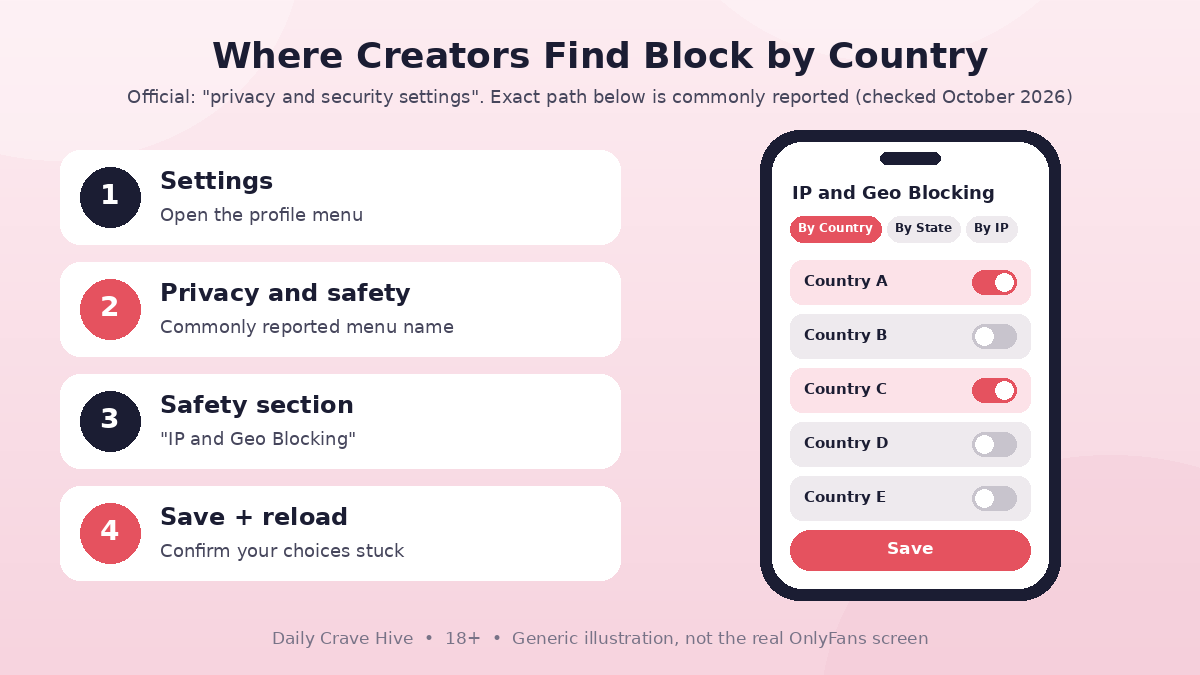
Block by Country lives in your privacy settings. Save and reload to confirm your choices stuck. Generic illustration, not the real OnlyFans screen.
Which Places Should You Block?
There's no single right answer. It's a trade-off between privacy and reach. Every place you block is a place where potential fans can't see your page. Creators commonly approach it like this:
- Your home state or province. This is the most common choice when the country is too big to block entirely but local people are the main worry.
- Where family lives. If your parents or relatives live in another state or country, block that area too.
- Your home country. Some creators block their whole country, especially in smaller countries where people are more likely to know each other. Others decide the loss of fans isn't worth it.
- Where you work or study. If your workplace or campus is in a different state, consider adding it.
You can use the Reach tab on your Statistics page to make a more informed choice. The Creator Center says it lets you "find out how many people view your profile, what countries they're from, and how much time they spend looking at your content." That tells you roughly how much traffic a block might cost you.
What Geoblocking Can't Do
Geoblocking is helpful, but it's not an invisibility cloak. Knowing its limits will stop you from relying on it too much.
It Depends On Location Detection
Websites generally estimate a visitor's location from their IP address. This is called internet geolocation, and it's never perfectly accurate. Anyone whose connection appears to come from somewhere else may not be blocked. That includes someone who is travelling, or someone using a VPN or proxy service, who may appear to be somewhere else. It also works the other way: if location detection is wrong, a genuine fan outside the blocked area could be blocked by mistake. Geo-blocking has the same limitation everywhere it's used, from streaming services to online shops.
So treat geoblocking as a strong filter against casual discovery, not a guarantee against someone who is actively looking for you.
It Doesn't Cover Content Outside OnlyFans
Geoblocking only controls who can open your OnlyFans profile. It doesn't hide:
- Your promotional posts on social media, Reddit or link-in-bio pages
- Content that has been leaked or reposted on other sites
- Search results that show your stage name or photos
If your content has already appeared elsewhere, see our guide to protecting OnlyFans content from leaks. It covers watermarks, DMCA takedowns and removing leaks from Google.
It Doesn't Hide Your Face Or Identity
If someone who knows you sees your face, tattoos or a distinctive room on any platform, a block won't help. Many creators combine geoblocking with careful framing, a separate stage name and a separate email address.
Block Specific People Too
Geoblocking hides your page from places. To stop a known individual, OnlyFans offers two separate tools, according to the Creator Center:
- Restrict: a restricted subscriber "will still have access to your profile, but their messages and comments to you will be hidden." The Creator Center compares it to muting someone.
- Block: "Once blocked, a user will have no way of accessing your profile or communicating with you on the platform in any way."
To use either, the Creator Center says to click the three dots in the top right corner of one of the user's messages, posts or profile. You can restrict or block subscribers, but you can only block non-subscribers.
If you know a specific ex or harasser has an OnlyFans account, blocking that account works alongside geoblocking their area. Report threats or abuse with the report button that, according to the Creator Center, appears on each image, video, post, message and account on OnlyFans.
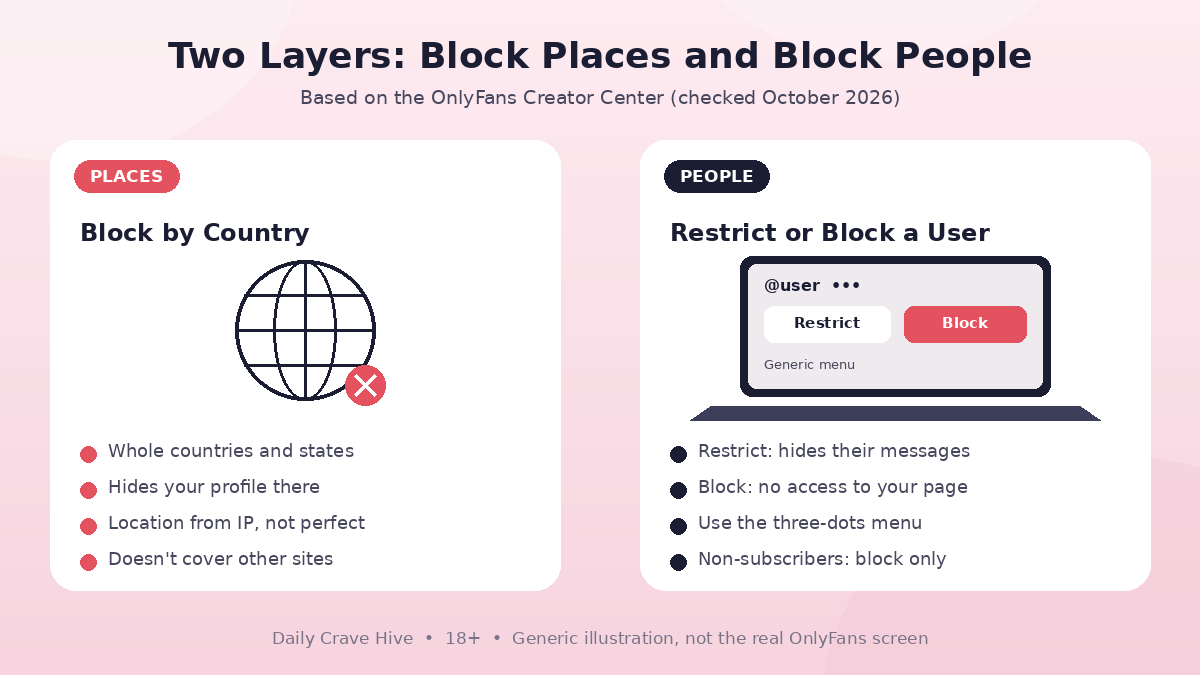
User blocks stop a known account, while geoblocking covers whole areas. Most creators use both. Generic illustration, not the real OnlyFans screen.
A Simple Privacy Checklist
Geoblocking works best as part of a routine. Here's a checklist built from OnlyFans' official guidance and commonly reported creator practice:
- Turn on Block by Country for your home area and anywhere family lives.
- Block known accounts of people you don't want seeing your page.
- Turn on watermarking. The Creator Center says you can turn on automatic digital watermarking "at any time from the Privacy and safety menu in your profile Settings."
- Never share identifying details. The Creator Center says that if you share content or information which compromises your safety, "such as a physical address," OnlyFans will remove it.
- Use a separate email and stage name for your creator accounts (commonly recommended).
- Check what Google shows about you. Google's "Results about you" tool helps you find and request removal of search results that show personal info like your home address, phone number or email address.
- Be careful with promotion. Promotional accounts are visible everywhere, regardless of your OnlyFans settings. Our guide to starting OnlyFans with no followers covers promotion basics.
- Recheck after changes. Review your settings after app updates, a move, or if anyone else ever had access to your account.
Also watch out for people who offer to "unblock" or "hide" your account for a fee, or ask for your login to "fix" your privacy settings. OnlyFans settings are free to use and you never need to share your password. Our OnlyFans scams guide explains common tricks aimed at creators.
Geoblocking If You Sell Feet Pics
Many feet content creators choose OnlyFans precisely because they can stay faceless. Geoblocking adds another layer for them. Feet can still be identifiable from tattoos, jewellery, nail polish or a recognisable floor or sofa, so treat your background as part of your privacy settings. For a broader overview of selling feet content safely, see how to sell feet pics and make money.
Frequently Asked Questions
Can you block a country on OnlyFans?
Yes. The OnlyFans Creator Center says creators can block users in specific states and entire countries from accessing their profile by enabling Block By Country in their privacy and security settings.
Can you block a specific state or city on OnlyFans?
OnlyFans officially confirms state-level blocking. Creators commonly report that state or province blocking is available for the United States, Canada and Australia. We didn't find official confirmation of city-level blocking, so treat a state as the smallest reliable area and check the official site for changes.
Does geoblocking on OnlyFans really work?
It's a strong filter against people casually finding your page from a blocked area. It's not foolproof. Location is generally estimated from a visitor's IP address, so someone travelling or using a VPN or proxy may appear to be somewhere else. It also doesn't hide content posted outside OnlyFans.
Can someone I blocked still see my OnlyFans?
According to the Creator Center, a blocked user has "no way of accessing your profile or communicating with you on the platform in any way." That applies to that account. Someone could still create a new account or view leaked content elsewhere, so combine user blocks with geoblocking and leak monitoring.
Will geoblocking reduce my earnings?
It can, because people in blocked areas can't see or subscribe to your page. Check the Reach tab on your Statistics page, which the Creator Center says shows what countries your viewers are from. That helps you weigh privacy against lost traffic.
Is geoblocking free on OnlyFans?
Block by Country is a standard creator privacy setting, and we found no fee for it on OnlyFans' official pages. Be wary of anyone who charges to "hide" your account or asks for your login.
Final Thoughts
OnlyFans' Block by Country setting is one of the easiest privacy wins for a new creator. Turn it on for your home area and anywhere family lives, block known accounts, and switch on watermarking. Just don't treat it as a guarantee. It filters out casual discovery, but it can't control content or promotion outside OnlyFans, or visitors whose location appears to be somewhere else. Layer it with a separate identity, careful backgrounds and regular checks, and check the official site whenever menus change.
Last checked: October 29, 2026. This guide is for adults aged 18 and over and is based on OnlyFans' official pages, not hands-on testing.
Alma MartinEditor, Daily Crave Hive
Alma Martin is the editor at Daily Crave Hive. She reviews creator and adult platforms - fees, payouts, safety and more - so readers get honest guides before they sign up.