18+ Disclosure: This guide is for adults aged 18 or over. OnlyFans is only available to users aged 18 and older. Some links on this page may be affiliate links, and we may earn a commission at no extra cost to you (see our affiliate disclosure). We have not run a livestream from a creator account. This guide is based on OnlyFans' official blog, Creator Center and Terms of Service, with eligibility thresholds OnlyFans does not publish labelled as commonly reported, not on hands-on testing.
Last checked: November 4, 2026. Steps from OnlyFans' Go Live blog (May 10, 2024) and Creator Center; fee and hold rules from the public OnlyFans Terms of Service (last updated October 2026).
Livestreams are one of the fastest ways to feel close to fans - and one of the easiest ways to leak a messy room, a weak connection or a Terms problem on camera. OnlyFans publishes a clear How to Go Live guide (May 10, 2024) plus Creator Center notes on when streaming unlocks. This article walks through that official path: gear, browser steps, tip goals, co-streaming, scheduling, OBS and safety.
We checked the OnlyFans blog Go Live article, the Ultimate Guide to OnlyFans Features, the Creator Center and the public Terms of Service (Last updated: October 2026) on November 1, 2026. Background on the platform and livestreaming as a format: Wikipedia - OnlyFans and Wikipedia - Livestreaming. Hold and fee rules in the Terms apply to what you say and show live - see the safety section below. Anything not on those official pages is commonly reported. Menus change, so check the official site.
Livestreaming At A Glance
| Topic | Official summary | |---|---| | When Go Live appears | After a history of great Content and community engagement (Creator Center) | | How to stream | Mobile or desktop browser (Safari on iPhone/iPad; Chrome on Android) | | Free accounts | May set a Live Video Price from $5 | | All creators | Tip goals, optional rewards, show/hide collected tips | | After the stream | Video saved to the Vault as VOD (Features guide) | | Co-streaming | With another verified creator once both allow it | | OBS | Supported; stream key under Settings → Streaming |
When Can You Go Live?
The Creator Center is explicit: Go Live is not on day one.
"The ability to go live on OnlyFans is only enabled after a creator has demonstrated a history of providing great content, and a high level of engagement with their community. Once you have achieved this, the 'Go Live' feature will appear on your page."
The Go Live blog repeats that streaming appears after your profile has been active with a history of sharing great Content in keeping with the Terms.
OnlyFans does not publish a hard public number on that blog for "X posts and Y subscribers." Creators commonly report needing about five recent posts and five active subscribers plus feed activity before the button appears. Treat that as commonly reported and wait for Go Live on your own page rather than counting calendar days.
If you are still building that history, our guide to starting OnlyFans with no followers covers the setup and promotion basics that make engagement possible.
Gear And Connection
From OnlyFans' Go Live guide:
- A smartphone or computer with camera and mic is enough
- Streams can be vertical or horizontal
- Prefer strong Wi‑Fi; ethernet on a computer is ideal. Mobile data works but is riskier
- Grant browser permissions for camera and microphone when prompted
Connection quality shows as a circle during the stream:
- Red - weak (bad viewer experience)
- Yellow - average
- Green - strong enough for high-quality streaming
How To Start A Livestream (Official Steps)
OnlyFans' blog lists this browser flow:
- Open OnlyFans in a recommended browser (Safari on iPhone/iPad; Chrome on Android; see OnlyFans' desktop browser list for computers)
- Select the Go Live icon
- Under Available to, choose which subscribers can join and whom to exclude (Lists help here - Features guide)
- Write a short description
- Name your price if you have a free profile - Live Video Price from $5
- Add a tip goal and optional reward; choose whether the goal is visible
- Choose whether viewers see collected tips
- Press Start Live Video
Keep the connection indicator in view for the whole session.
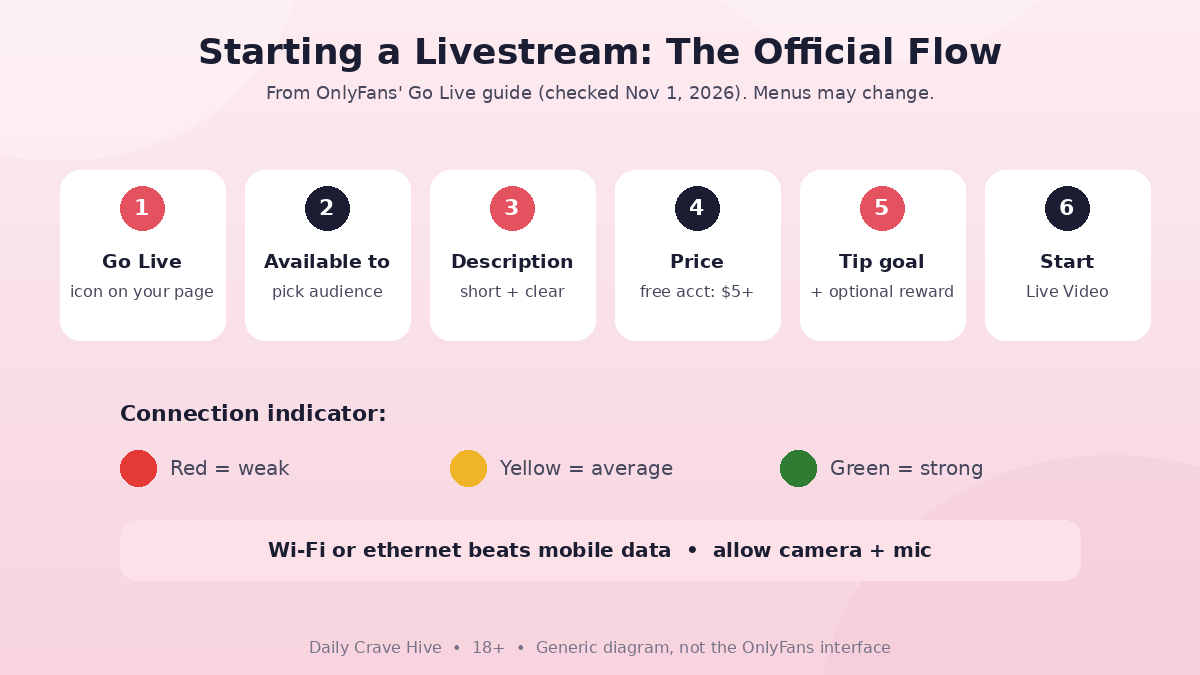
The official Go Live flow: audience, description, optional price on free accounts, tip goal, then start. Keep the connection indicator green.
Tip Goals, Tips And The 20% Fee
All creators can set a tip goal and optional reward (Go Live guide). Fans can tip streams, posts, DMs or the profile (Features guide).
Under the Terms, OnlyFans' fee is 20% of the total User Payment, and tips and paid stream access count as User Payments (Creator Interactions). Creators keep 80% before pending-balance and payout timing. Source: OnlyFans Terms of Service, Last updated: October 2026. Full payout mechanics are in OnlyFans fees and payouts.
US creators still track income for tax. Form 1099-NEC uses a $2,000 threshold for payments made in 2026 ($600 before). See our OnlyFans taxes guide for reporting thresholds. Not tax advice.
PPV Streams (Free Accounts)
The Creator Center and Features guide say PPV streams (ticketed lives) are for free accounts that are eligible to go live. Think of them as selling tickets. Ticket prices can start as low as $5. Paid subscription accounts still tip and engage on lives; the paid-entry stream tool is the free-account extra.
PPV messages are a separate product available to all creators; this article stays on live video.
Co-Streaming
Official steps (Go Live blog + Creator Center):
- Both creators should be subscribed to each other
- Host: Settings under Streaming must allow co-stream requests from subscribers; start the live; invite via the three dots next to the guest's name, or accept their request
- Guest: join the host's stream as a viewer, then request to join or accept an invite
- Viewers can tip one or both creators
- Features guide: streamed videos land in the Vault for later VOD
If anyone else appears in explicit recorded Content later, co-author tagging and consent rules in the Terms still apply.
Schedule Ahead With The Queue
OnlyFans recommends putting lives in your Queue so fans get an automatic reminder as start time approaches:
- Choose date and time
- Add cover image and stream info
- Schedule
- Return to the Queue at the set time and press Go Live
Starting late after a reminder burns trust faster than skipping an unannounced stream.
Streaming With OBS
OnlyFans states OBS is compatible. Official outline:
- Download OBS Studio from the OBS project site
- Allow camera/mic; optimise for streaming
- On OnlyFans: Settings → Streaming → copy the stream key under OBS software settings
- In OBS: choose OnlyFans.com as Service, paste the key
- Add video/audio sources
- Start streaming in OBS
- On OnlyFans Streaming page, open Link stream to chat to set tip goal, description and tip visibility
- Keep OBS and OnlyFans open side by side so you can run the show and answer chat
Never share your stream key. Anyone with it can broadcast as you.
What OnlyFans Says Makes A "Good" Stream
The Go Live blog's advice, condensed:
- Get personal - Q&A, real-time conversation
- Make it an event - teach, cook, perform, demonstrate a skill
- Engage - ask active viewers what they want next
- Enjoy it - fans notice when you do not
That is editorial guidance from OnlyFans, not a ranking algorithm promise.
Safety, Privacy And Terms While Live
- Background: remove mail, IDs, street signs, other people's faces without consent
- Watermarking still matters for clips that leave the stream; enable it in Privacy and safety (Creator Center)
- Meetups: Creator Center says in-real-life meetups between creators and fans are strictly prohibited
- Content rules: the Creator Center's removal list (unverifiable ages, under-18 role play, public nudity, weapons, illegal drugs, missing collab tags, and more) applies on camera too
- Account risk: The October 2026 Terms allow suspension, paused User Payments and withheld earnings during reviews if OnlyFans thinks you have or may have breached the Terms, for serious attempt/threat of breach, suspected unlawful or fraudulent earnings, actions reasonably likely to cause loss or harm reputation, and/or failure to promptly provide requested information. Dispute in writing within six months of Notification or you waive that right. Source: OnlyFans Terms of Service, Last updated: October 2026. Details: account suspended
- Scams: nobody needs your stream key or password to "boost" a live. See OnlyFans scams
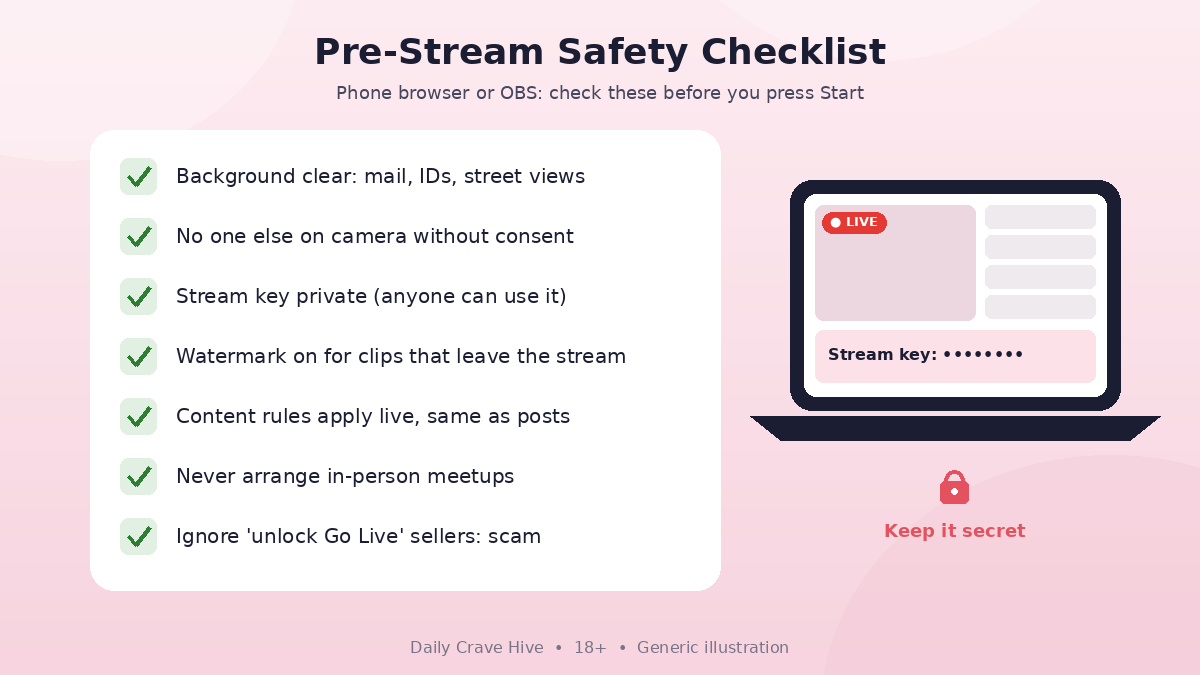
Whether you use a phone browser or OBS, check framing, audio and what the camera can see behind you before you go live.
Frequently Asked Questions
How do I go live on OnlyFans?
When Go Live appears on your page, open a recommended browser, select Go Live, set audience, description, optional price (free accounts from $5), tip goal and tip visibility, then start. Official steps are on the OnlyFans Go Live blog (May 10, 2024).
Why don't I see the Go Live button?
OnlyFans enables streaming after a history of Content and engagement. Wait until the feature appears. Commonly reported thresholds (such as a handful of posts and active subscribers) are not stated on the Go Live blog - confirm on your account.
Can I go live from my phone?
Yes. OnlyFans recommends Safari on iPhone/iPad and Chrome on Android, with camera and mic permissions and a strong connection.
How do tip goals work?
All creators can set a tip goal and optional reward, and choose whether the goal and collected tips are visible. Tips are User Payments; OnlyFans takes 20% of the total User Payment. Source: OnlyFans Terms of Service, Last updated: October 2026.
Can two creators stream together?
Yes. Co-streaming is supported once both accounts allow it and Go Live is unlocked. Follow the host/guest steps on the Go Live blog.
Do livestreams save after I end?
Yes. The Features guide says OnlyFans adds streamed videos to your Vault so fans can watch later as video-on-demand.
Final Thoughts
Go Live unlocks after you prove the page is active - then OnlyFans' own checklist (browser, audience, description, optional $5+ ticket on free accounts, tip goal, green connection) is enough to start. Add Queue reminders, co-streams and OBS when you are ready. Keep the Terms, background privacy and stream key under control, and treat anyone selling a shortcut to unlock streaming as a scam.
Last checked: November 4, 2026. This guide is for adults aged 18 and over and is based on OnlyFans' official pages, not hands-on streaming tests. Not financial or tax advice.
Alma Martin - Editor, Daily Crave Hive. Alma reviews creator and adult platforms, covering fees, payouts, safety and more, so readers get honest guides before they sign up.
Alma MartinEditor, Daily Crave Hive
Alma Martin is the editor at Daily Crave Hive. She reviews creator and adult platforms - fees, payouts, safety and more - so readers get honest guides before they sign up.